
TABLE OF CONTENTS
Using TPCloud PIN
- Locate and tap the desired token from the tokens list
- Under the View Details tab, click the Create a PIN button
A 5-digit PIN will be generated for the Token, and the PIN will expire within 30-Days ifunused. If the PIN expires before registration, simply use the Create a PIN option again.
NOTE: The Create a PIN option is available for valid unregistered Tokens. - Navigate to the Settings and TP4 files tab.
All TPControl device Settings and TP4 files can be configured here. Name relevant connection Profiles, and assign Host and Device ID parameters as a minimum requirement.
NOTE: The TPCloud update options for TP4 Files and Settings determine which associated
resources the device retrieves when it processes a TPCloud update or TPCloud PIN
- On the device with TPControl installed, go to TPControl Settings, scroll down, and toggle on the TPCloud PIN option.
- Exit from the Setting and return to TPControl
- A TPCloud PIN window will be presented
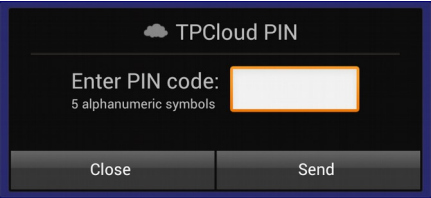
- Enter the generated 5-digit PIN from step 2 and press the Send button.
Provided the device has Internet access, the PIN entered will be validated with the Touch Panel
Control registration servers, and the device will be assigned to the Token. Successful registration will result in the device updating any Settings and/or TP4 files for the respective Token, as configured within TPCloud. Any errors will be reported within the 'TPCloud PIN' dialog window
Using Token Registration and TPCloud Update
- Configure Settings and UI file in TPCloud. Follow the steps in Add UI file and Settings in TPCloud
- After completing the setup, proceed to register the token on the devices by following the steps in Register Token on Devices