
TABLE OF CONTENTS
- How to access TPControl Settings
- Device Settings
- Not Connected
- Assigning a BYOD system file to a connection profile
- QR Code Scanner
- Applying Settings
How to access TPControl Settings
iOS
Open the Settings app of the iOS device, then navigate to Apps → TPControl.
Android
- To access application Settings, make sure that TPControl is running with full-screen focus.
- Then, select the MENU or BACK button on your device. A drop-down menu will appear from the top of the display.
- Next, select the Settings icon (see below) presented in the drop-down menu.

- The TPControl Settings menu will appear
Windows (TPI-PRO)
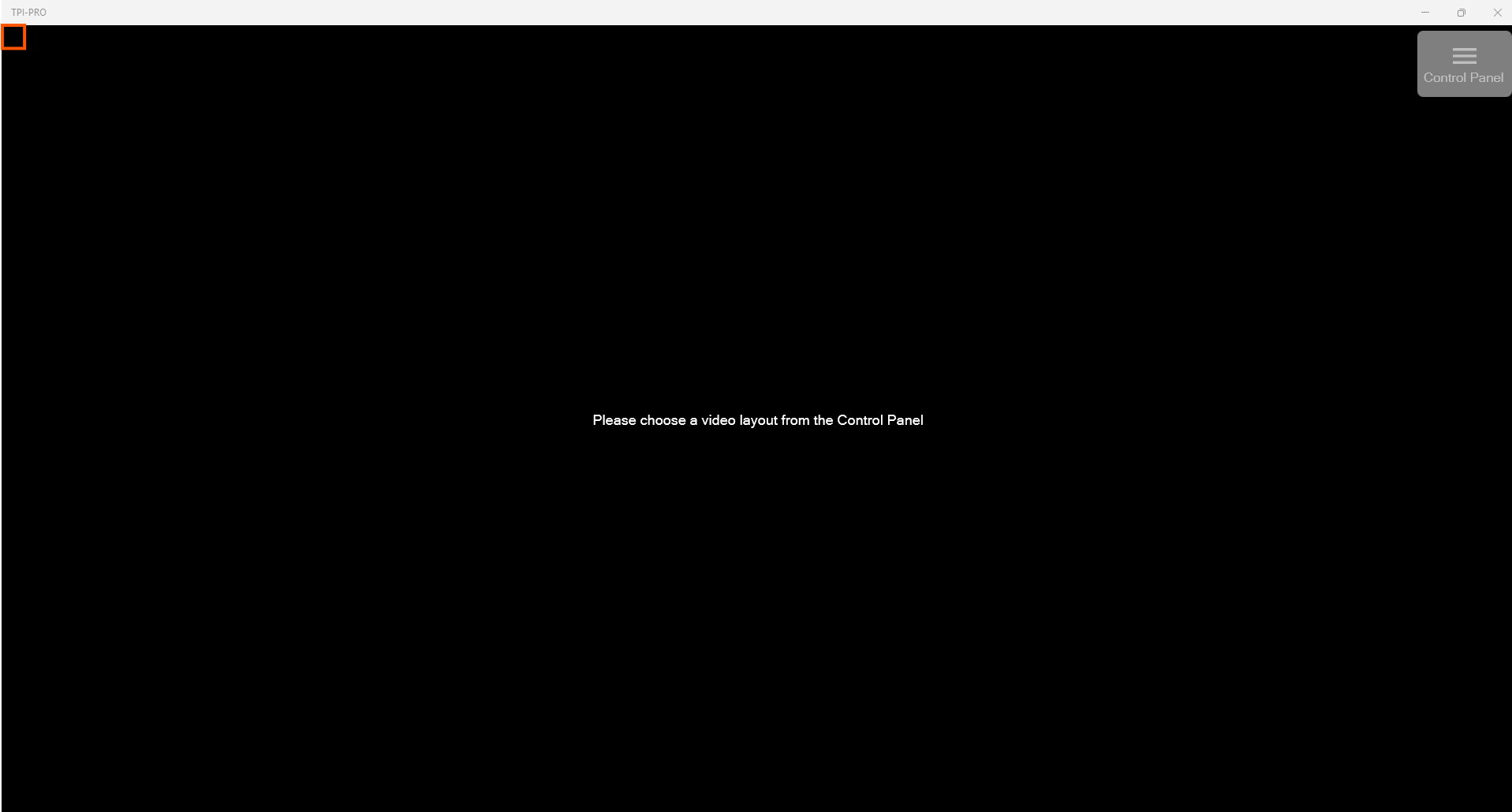
- Press and hold the top-left corner of the screen for 3 seconds, then release.
For programmers: The SETUP API command can be issued from an AMX controller/master for direct access to Settings. Alternatively, the 0-Setup Port; Page-flip: Setup channel-port/channel-code can be applied to a button in TPDesign4/TPDesign5 → Buttons properties → Programming for direct access to Settings, independent of code. Download the example UI file here.
Device Settings
DEVICE | |
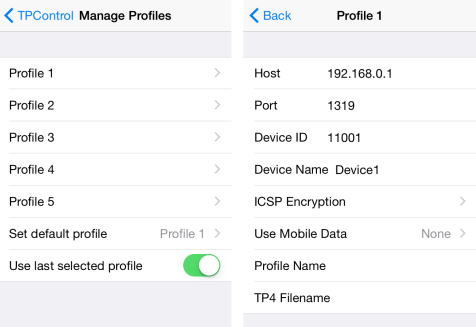
Manage Profiles | Profiles provide the ability to define independent connection-based information for the device, which can easily and quickly be recalled. API commands support the manipulation of all aspects of each profile definition, essentially providing limitless combinations for profile configurations. Selecting the Manage Profiles option will present 5 profile selection options, an option to define a Default profile, and an option to always use the last selected profile.
Profile 1, 2, 3, 4, or 5 Choosing a profile to edit will present the following options: Host Profile 1, 2, 3, 4, or 5 Choosing a profile to edit will present the following options: Host Use Mobile Data The following options are available for establishing a connection to the controller:
NOTE: Mobile Data may not be supported by the device when an active WiFi connection is in use. Profile Name This option provides the ability to name a profile. Naming a profile is only necessary if you would like TPControl to present the profile as an option within the built-in Connect using profile connection window. This is particularly useful when multiple connection profiles are configured. Some example names would be: Profile 1: Room A, Profile 2: Room B, etc. UI Filename Indicates the File Slot number and associated TP4/TP5 file name currently assigned to the profile. Changing the File Slot assigned to the profile is provided via the Connect using profile window (refer to Prompt for Profile) or using TPC API commands. Set Default Profile Choose from any 1 of the 5 available profiles to define the default. The default profile determines which profile TPControl will use at startup. The default profile is used only when starting TPControl if it was not previously running in multi-tasking mode (Home screen). If TPControl is running in multi-tasking mode, the active profile will remain operational. NOTE: The current active profile will not be affected when setting the default profile. Use last selected profile This setting defines whether the last selected profile or the default profile is used for reconnection when returning to TPControl.
|
Apply Profile | Choose from any of the 5 available profiles to activate the chosen profile. NOTE: The profile will be applied once you exit Settings, relaunch TPControl, and, if applicable, answer 'OK' to the 'Settings were changed' dialog. |
Prompt for Profile | When enabled, independent of whether an active profile connection exists or not, TPControl will present the Connect using profile window at application launch, or whenever returning from the device Home screen or multi-tasking mode. The following named or unnamed profiles will be shown:
NOTE: The Not Connected dialog will automatically present the Connect using profile window, independent of the Prompt for Profile setting. |
Keep WiFi Active | When enabled, TPControl will continue to keep a connection live with the controller when the device goes to sleep or another application takes device focus, e.g. the device home screen. NOTE: iOS 5 introduced an enforced a 2.5 minutes application timeout, which overrides the 'Keep WiFi Active' and 'Multitasking Timeout’ features. If the device is running iOS 5+, TPControl will be forced to disconnect after ~2.5 minutes when running in multi-tasking/background mode. |
Multitasking Timeout | Assuming 'Keep WiFi Active' is enabled, when TPControl is no longer in application focus, this timeout determines if and when TPControl will disconnect ICSP communication with the controller, and in doing so, preserving battery life. NOTE: If the device is running iOS 5+, TPControl will disconnect after ~2.5 minutes when running in multi-tasking/background mode. |
Gestures | Enable or disable AMX gesture recognition. Default is enabled. Recommend disabling when Accessibility mode is enabled, due to gesture-specific operation of Accessibility functions. |
Enable Auto-Lock | When enabled, this will allow the Device to run the OS screen lock feature as set in "General Settings" on the device. If Enable Auto-Lock is set to "Off", the screen will stay active until the Power button is pressed. NOTE: Battery life may be significantly reduced if this feature is not enabled. |
Lock Rotation | Disabled: Allows the project content to rotate based on the orientation of the device. Enabled: Prevents the device from rotating the project content based on the orientation of the device. |
Disable Multitouch | Disabled: Allows multitouch operation. Enabled: Prevents multitouch operation e.g. a release must be issued before the next press will be recognised. |
Accessibility | Supports device Accessibility VoiceOver mode. On your device, go to "Settings → General → Accessibility → VoiceOver" and enable/disable the feature as required.
Recommendation: If your TP4/TP5 design includes popup pages, it is recommended that the popups are defined as "modal" to ensure that buttons from underlying pages/popups do not confuse navigation when gesture navigation is used. NOTE: Buttons that are disabled or hidden are ignored. Not Connected and Connect using profile dialogs are supported with full navigation. Modality for these dialogs is supported in iOS 5+ There are times when fonts containing symbols may be utilised within the user interface design, e.g. play, stop, pause, etc. The symbols themselves relate to ascii-characters and are likely not the desired text for readout. To overcome this, placing text in the buttons "General: Description" field will, by default, be used for readout, rather than text that may usually appear in the "States: Text" field. TPControl provides the following options during device Accessibility mode.
|
Dock / Undock notification | When enabled, TPControl will send a string notification to the controller each time the device is docked/undocked (same indication for charging/not charging). |
PROJECT | |
Inactivity Page Flip Time | When a value is set, if a button has not been pressed within the specified time, TPControl will flip to the Inactivity page that has been defined within the properties of the AMX TPDesign4 TP4/TP5 file. |
Screen Resize | Options provided here allow the TP4/TP5 project to be presented in the following modes:
|
SPEECH TO TEXT | Speech-to-Text requires the device to have unrestricted Internet access.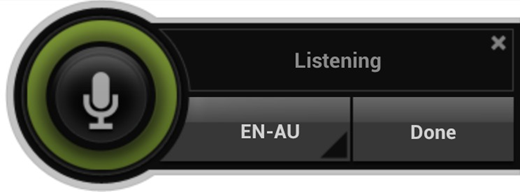 |
Display Result | The result of Speech-to-Text analysis can be displayed via a brief notification on-screen. Options available are:
NOTE: Errors in processing will always solicit a notification independent of this setting. |
Auto-hide pop-out |
|
TEXT TO SPEECH | |
Use offline mode(Android only) | Disabled - TPControl will utilise online resources to determine text-to-speech translation (default). Enabled - TPControl will utilise device-defined language packs to determine text-to-speech translation. NOTE: In order to operate properly while in offline mode, the device must have an appropriate language pack installed to complete the operation. NOTE: Results are cached with each completed translation when operating in online mode |
Clear cache | Clears the text-to-speech cache, which is created during operation. |
NOTIFICATION | |
Button Hit | When enabled, Button Hit produces a "Beep" sound when a valid button area is pressed within the touch panel design file. |
Button Miss | When enabled, Button Miss produces a "Double Beep" sound when any area outside of a valid button area is pressed within the touch panel design file. |
Beep Volume Level | Sets the level at which the volume for the Beep will be announced. When running TPControl, the device's Hard Volume buttons will adjust the audible level of the Beep Volume Level. |
Intercom call notification | When enabled, if TPControl is running but does not currently have application focus, an alert notification will be presented on the device. NOTE: This notification occurs only if corresponding intercom call initiation commands are received by TPControl. iOS 5 introduced an enforced a 2.5 minutes application timeout. So, if the device is running iOS 5+, TPControl will be forced to disconnect after ~2.5 minutes when running in multi-tasking mode, meaning that Intercom call notifications will not be received after this timeout. |
PASSWORDS | |
User passwords | There are up to 4 user passwords that can be used within a TP4/TP5 file for protected Page Flip actions, and a 5th for system-protected Page Flip actions. Define each password in this section. |
SIP | |
SIP Settings | A general-purpose SIP softphone is integrated into TPControl and includes both video and audio SIP support. As such, TPControl will work with any VoIP operator or device that implements SIP. This includes, but is not limited to: door stations, IP phones, and Video conferencing systems. At a minimum, the SIP Server, Username, and Password fields must be configured, based on your relevant SIP service. Configure SIP-related settings within the subsequent TPControl Settings menus: Enable SIPWhen enabled, TPControl will automatically attempt to register with the SIP Server using the defined Username and Password. Username The username for authentication with the SIP Server. Password The password for authentication with the SIP Server. SIP Server The SIP Server (Domain / Realm) for authentication. Advanced Advanced configuration settings are as follows:
Note: If the device region is set to China Mainland, the app may display a warning that SIP functionality is disabled for the region whenever launched. To disable the warning, set a different device region. |
VERSION | |
Version | This is the current software version of TPControl running on the device. |
Token | This is the Token that the device is registered to. |
TPC Device ID | The Touch Panel Control device identifier is unique to the device. The identifier assists with TPCloud online functionality. |
Verify Device | This option provides the ability for the TPControl device to update its license information when changes have been applied at the Touch Panel Control servers. For example, trial-based licenses may be reset/refreshed by a TPC Team member, and then this option can be used to update the license for the device. When enabled, the function is performed once you return to the main interface. The option is reset back to off after the changes have been applied, but can be re-enabled at any time to repeat the verification process. If successful, a "Device successfully verified" message will be presented briefly within the main interface. NOTE: Internet access is required from the device to complete the operation. |
Token Registration | Select this option to register TPControl with an applicable TPC User ID and Token. NOTE: Internet access is required from the device to complete the operation. |
TPCloud update | The TPCloud Update option provides the ability to update the TPControl TP4/TP5 file and/or Settings via the Internet for any licensed TPControl device, empowering a technician or end-user to update a device at any chosen time. Management of TP4 file resources and Settings is provided via an account login at TPCloud. Within TPCloud, all TPControl "Tokens" have configurable TP4/TP5 files and Settings options:
The information stored within TPCloud will be applied to the device when the TPCloud update option is enabled on the device, and TPControl is launched. NOTE: Internet access is required from the device to complete the operation. Device registration will be automatically verified prior to any update being applied from TPCloud to the device. |
TPCloud PIN | PIN codes can be generated specific to each Token that is stored within TPCloud at tpcloud.touchpanelcontrol.com. PIN codes are used to complete device registrations and deauthorizations. Select the TPCloud PIN option, then enter the unique PIN code as provided by TPCloud. Launch TPControl to initiate the TPCloud PIN process. Based on the TPCloud configuration, TPControl will validate the PIN code reference and act accordingly. Supported PIN methods:
NOTE: Internet access is required from the device to complete the operation. Device registration will be automatically verified prior to any update being applied from TPCloud to the device. |
Store settings to external device(TPI-PRO) | Supports the ability to use the same license and configuration across multiple user profiles. An external USB memory stick connected to the TPControl PC is required for this functionality. A notification will show to indicate that the settings were saved to the USB. Once saved, login to the other user's account, install TPI-PRO and launch the application. TPI-PRO will check for the USB, will license and configure itself, allowing you to use the same license and configuration across multiple user profiles. |
Developer Settings | Transfer Port The port used by TPControl to communicate with TPTransfer. Default port is: 10700. Note: TPTransfer is no longer supported and has been deprecated. We recommend using TPCloud moving forward. When necessary, you may download TPTransfer here. Restore All Settings When enabled, this will restore all settings on the settings page back to defaults. The option is reset back to off after the changes have been applied. UI file options Operations specific to the TP4/TP5 file installed appear here.
iBeacon Settings (iOS)
|
Not Connected
The NOT CONNECTED warning will automatically appear if TPControl is unable to communicate with the AMX controller.

NOTE: TPControl will persistently retry connecting if an active connection is not in place, using the current active profile connection settings. The NOT CONNECTED warning will automatically disappear if TPControl connects to a controller.
Pressing the NOT CONNECTED warning will hide the dialog only for the current TPControl session.
The NOT CONNECTED warning indication cannot be permanently disabled or turned off. Its purpose is to avoid users pressing buttons in the UI with the expectation of system control when there is no chance of that due to there being no communication with the controller.
Potential reasons why NOT CONNECTED can appear:
- Ensure WiFi is enabled on the device, and that it is connected to the correct IP Network. Furthermore, ensure the IP address assigned to the device is valid.
- Determine the IP address of the controller, and ensure that the HOST field within Settings for TPControl has been configured with the IP address of the controller, e.g. Manage Profiles → Profile x → HOST.
- Ensure that a unique and correct Device ID has been configured within Settings for TPControl, e.g. Manage Profiles → Profile x → Device ID. All devices connecting to a controller must have unique identifiers in order to connect and operate properly. If the Device ID conflicts with another connected device, one or both devices may not connect, or may work irregularly until the conflict is resolved.
- Is ICSP Encryption enabled on the controller? If so, ensure that the connection profile is configured with the relevant ICSP Encryption credentials.
For further troubleshooting, refer to the Troubleshooting connection problems guide.
'Connect using profile' window
Within TPControl, the Connect using profile window provides a method to very quickly select or change between connection profiles.
A 2-finger swipe from left to right can be used to present the Connect using profile window at any time.
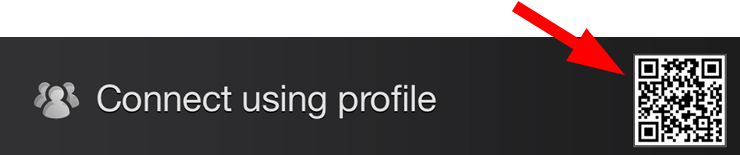
Additionally, access to TPControl's built-in QR Code Scanner is provided by way of the QR Code icon available in the Connect using profile window. See the QR Code Scanner section for more information on QR Code scanning and its use.
Profiles contain connection-specific information that TPControl uses when communicating with a controller.
NOTE: Refer to the Profile Name section for details on naming connection profiles.
For multi-TP4 file-enabled versions of TPControl, the Connect using profile window also provides a method for defining the specific TP4 File Slot to use for each profile. See the Assigning a FILE SLOT to a connection profile section that follows for more details.
Five user-definable profiles are provided in TPControl (see Manage Profiles). Although there are only five physical profiles provided, our API can be used to dynamically update any profile, providing limitless profile configurations, which can easily be recalled using either the Connect using profile window or using buttons defined within the user interface design.
For a demonstration TP4 file on how to dynamically update profiles from the UI, please click here.
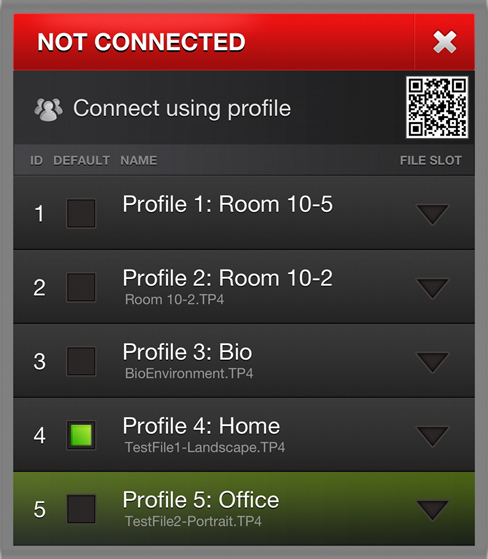
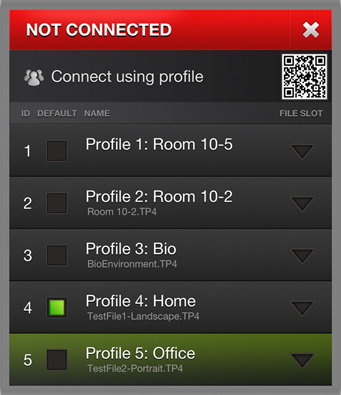
Refer to the Connect using profile example picture above. The example indicates the following:
- Profile 1 has been named Profile 1: Room 10-5
The profile has no TP4 file assigned - Profile 2 has been named Profile 2: Room 10-2
The profile has a TP4 file named Room 10-2.TP4 assigned - Profile 3 has been named Profile 3: Bio
The profile has a TP4 file named BioEnvironment.TP4 assigned - Profile 4 has been named Profile 4: Home
The profile has a TP4 file named TestFile1-Landscape.TP4 assigned - Profile 5 has been named Profile 5: Office
The profile has a TP4 file named TestFile2-Portrait.TP4 assigned - The default profile is Profile 4
- The current active profile in Profile 5, indicated by the highlighted profile
Selecting a connection profile
To select a profile, simply select the profile name. TPControl will attempt to connect to the controller using the assigned profile connection settings and load the applicable TP4 design file assigned to the profile.
Assigning a FILE SLOT to a connection profile
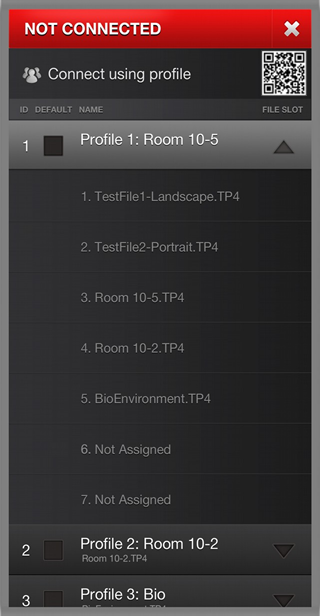
For multi UI file enabled versions of TPControl, the Connect using profile window provides a method for defining the specific UI File Slot to use for each profile. Pressing the FILE SLOT down-arrow icon will present all available File Slots currently available for the device.
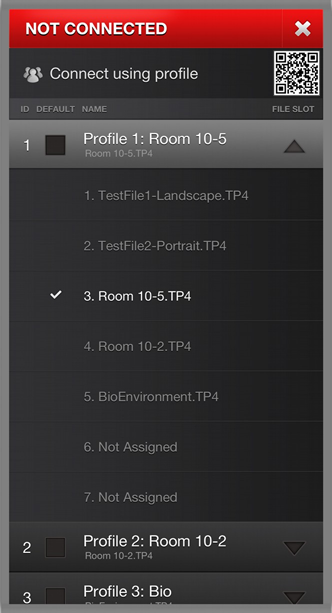
An example of assigning a TP4 File Slot for Profile 1 using the Connect using profile window follows:
- Begin by pressing the FILE SLOT down-arrow for Profile 1
- Choose FILE SLOT 3 to assign Room 10-5.TP4 to Profile 1
- FILE SLOT 3 is now assigned to Profile 1 as indicated
- Select Profile 1 to activate
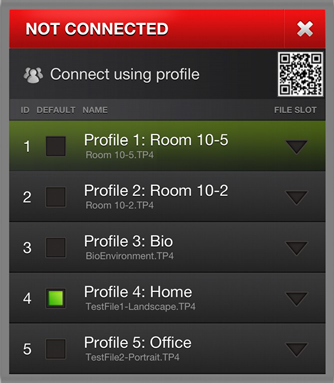
NOTE: The device in this example has been licensed with 7 x TP4 File Slots available.
To accomplish the same result using our API, issue the command: "'TPCCMD-1;TP4FileSlot,3;'". Essentially, that translates to "Assign TP4 File Slot 3, to Profile 1".
For more information on API commands, refer to TPControl - API Commands.
NOTE: As standard, any licensed device includes 2 x TP4 File Slots. However, there is no limit to the number of TP4 File Slots that can be added to the device.
NOTE: When a profile is selected that has no assigned TP4 file, the last used TP4 file will be used.
NOTE: To ensure the Connect using profile window appears whenever TPControl regains application focus, irrespective of connection status, refer to the Prompt for Profile section.
Assigning a BYOD system file to a connection profile
When TPControl connects to a BYOD Licensed system;
- If the BYOD TP4/UI file on the BYOD licensed controller has changed since the last time TPControl connected (or this is the first time connecting to the system), TPControl will retrieve the BYOD TP4/UI file and assign it to FILE SLOT 0 for the current active connection profile, and then display the BYOD TP4/UI file.
- Otherwise, TPControl will display the last FILE SLOT that was assigned to the current active profile.
NOTE: The FILE SLOT applied to the current active profile may not be the BYOD TP4/UI file, particularly if an alternate FILE SLOT was activated by API command or as per Assigning a FILE SLOT to a connection profile.
Example BYOD System file shown in the Connect using profile window
The following shows an example of how a BYOD System would appear within the Connect using profile window, located above any existing File Slots. Illustrated by steps 1, 2, and 3, is a sequence for editing the BYOD System identifier, should you need to.
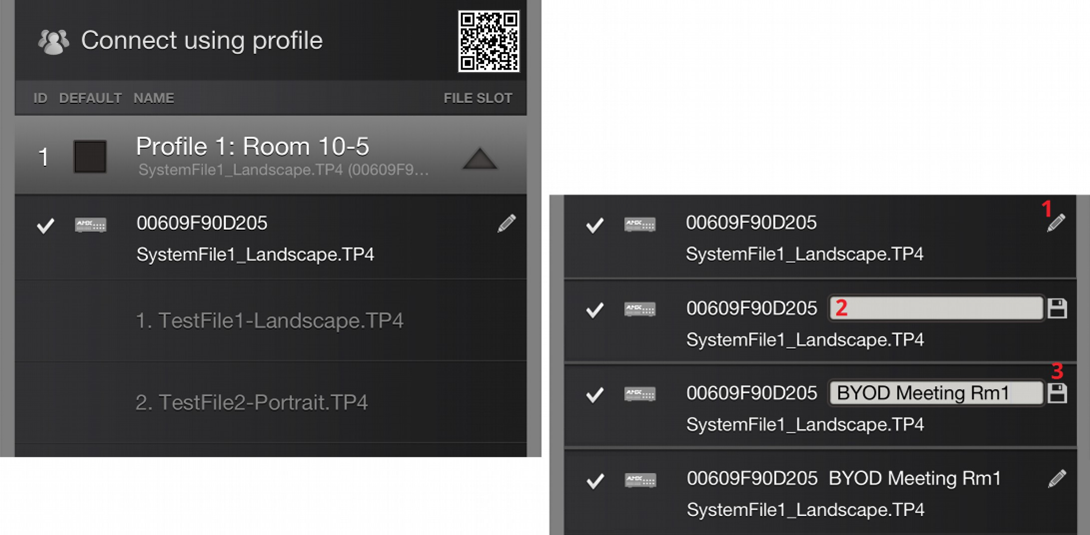
For more information about TPControl BYOD, please refer to our TPControl – BYOD How To guide.
QR Code Scanner
TPControl iOS and Android includes a built-in Quick Response (QR) Code scanner, which can be accessed via the Connect using profile window.
- Use a 2-finger swipe from left-to-right gesture to present the Connect using profile window, and press the QR Code icon to begin.
- Within the camera preview window, align the QR Code you want to scan.
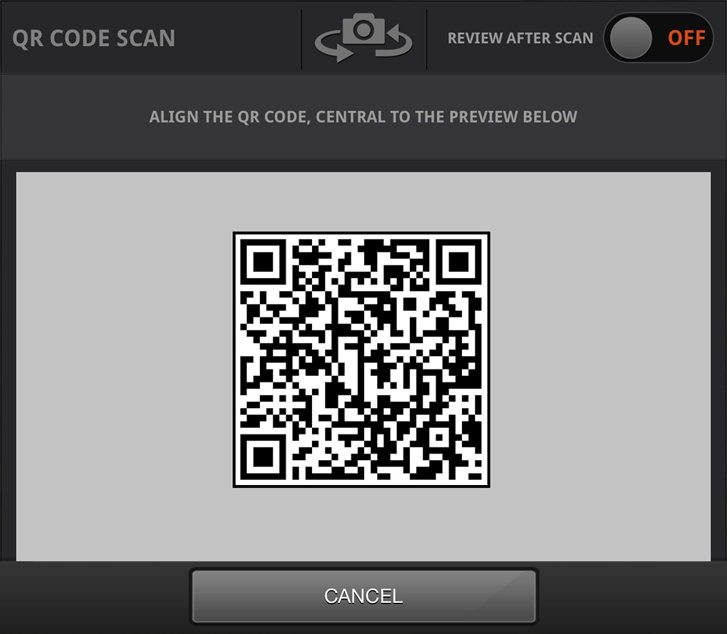
That's it! If the QR code is encoded with a valid TPControl API command or URI, it will be parsed accordingly. The result of scanning the QR code above is:
tpccmd-1;LocalHost,192.168.100.11;DeviceID,11001;ProfileName,Boardroom;ScreenResize,Scale;ApplyProfile;
...and that command translates to:
Configure TPControl “Profile 1” to connect to the AMX system at IP address “192.168.100.11”, using AMX Device ID “11001”. Name this profile “Boardroom”, and set the screen resize option to “Scale to fit”. Apply this profile to invoke these settings immediately.
For more information on API commands, refer to TPControl - API Commands.
QR Scanner options
REVIEW AFTER SCAN:
When turned ON, after successfully scanning a QR code, TPControl will present the scanned result for review.
For example;
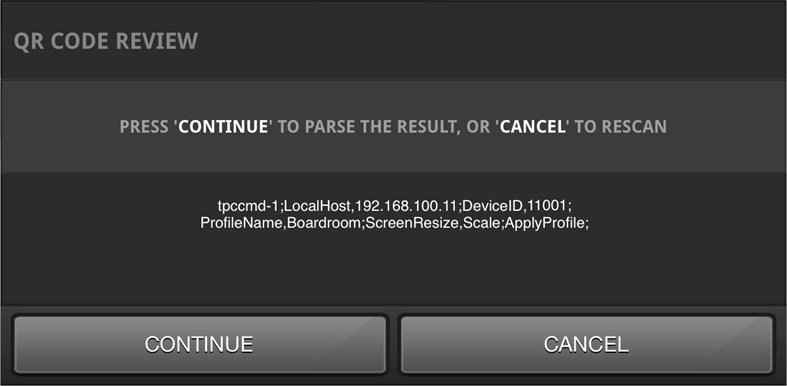
Then, upon selection of the 'CONTINUE' option, TPControl will parse the scanned result. Otherwise, selecting 'CANCEL' will return to the QR Code Scan window as in step 2 above.
SWAP CAMERA:
Pressing the Swap Camera icon will toggle between any available device cameras, if applicable.

How do I create a QR Code?
You can create QR codes via the Touch Panel Control website, direct link here:
https://store.touchpanelcontrol.com/qr-code/
Manage AMX Device IDs from code
For an example code demonstrating how to manage multiple devices connecting to a system using a common QR Code and AMX Device ID, please refer to our TPC-DynamicDeviceID.AXW workspace.
QR Scanner Tips
Besides configuring TPControl settings and getting connected to AMX control systems, scanning QR Codes within TPControl can have other uses.Some examples are shown below, which result in launching the respective websites within the device's default web browser:
- http://www.touchpanelcontrol.com/

- https://apps.apple.com/au/app/tpcontrol/id348715945

- https://play.google.com/store/apps/details?id=com.touchpanelcontrol.tpcontrol

- https://apps.microsoft.com/detail/9n7mzgz1p823?amp%3Bgl=GB&hl=en-us

Applying Settings
Any changes made within TPControl Settings will be applied when you return to TPControl. If an active session was in place, you will be prompted by the following:
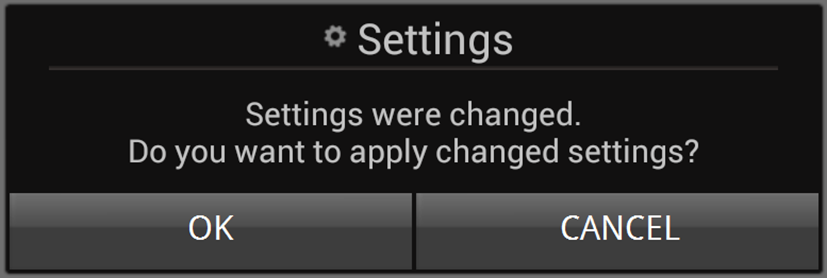
- Answering "OK" will apply the changes immediately.
- Answering "CANCEL" will not undo any changes made, but any changes will be applied the next time that TPControl is exited and run.