
TABLE OF CONTENTS
- New User Sign Up
- Add Token/License in TPCloud
- Add UI file and Settings in TPCloud
- Register Token on Devices
New User Sign Up
Skip if you have an existing account
- Open your web browser and go to our Store website (https://store.touchpanelcontrol.com)
- Navigate to Login → Create an Account
- Fill in Personal Information
- (Optional) If you are an AMX Dealer, checkmark I have a registered "AMX Company ID" and fill in AMX Company Details to unlock pricing and store purchase.
- Submit the form
- Check your email inbox (including spam and trash folders) and click the activation link sent to your registered email
- (Optional) Generate trial licenses through the "Try for free" options the Products page.
Once completed, your account is ready to use.
Add Token/License in TPCloud
Skip if using Trial licenses. If you generated trial licenses, they should already be displayed in the Tokens tab.
- Log in to TPCloud (https://tpcloud.touchpanelcontrol.com)
- Add/register the token information
- For individual device license:
- Navigate to the Tokens tab
- Click the +Add Token button
- Enter the Token and a reference in the fields provided and press Add Token
- For BYOD license:
- Navigate to the BYOD Tokens tab
- Click the +Add BYOD Token button
- Enter the BYOD Token and a reference in the fields provided
- Press Add Token
- For individual device license:
Add UI file and Settings in TPCloud
For Individual device license:
- Navigate to the Tokens tab and select a license
- Go to the Settings and UI Files tab
- Enable UI Files and Settings under TPCloud update options

- Fill In Profile Settings and hit the Save Changes button
- Under the UI File Slots section, assign or upload a design file
- Enable UI Files and Settings under TPCloud update options
For BYOD license:
- Navigate to the BYOD Tokens tab and select a license
- Host the BYOD UI file in TPCloud
- From the BYOD File section under View Details tab, press the Assign BYOD UI file button.
- Press the Select File button after selection of either a previously uploaded UI file or choosing to upload a new UI file from your computer
- Generate the License Key file for your AMX Netlinx controller/master
- Press the Generate Key button
- In the field provided, enter the controller's MAC address.
- Follow up by pressing the Generate Key button.
- Press the Download Key button to obtain the license key file (system_license.tpc), and select either
- Email - have the license key file sent directly to your account's email address
- Download key - to save the file directly to your computer
Register Token on Devices
For Individual device license:
- Turn on Token Registration
- Within TPcontrol Settings on your device, enable the Token Registration option
- Exit from the Setting and return to TPControl
- Enter Registration Details
- Enter your registered email address in the TPC User ID field
- Enter your TPControl token value in the Token field, then press Submit
- Download UI Files and Settings from TPCloud to the device
- Within TPcontrol Settings on your device, enable the TPCloud Update option
- Exit from the Setting and return to TPControl
For BYOD license:
- Register the license to the AMX Netlinx controller
- FTP the BYOD License Key file to the controller
- Open Windows Explorer
- Initiate FTP session - within the address bar, type in the FTP protocol and IP address of the Netlinx controller and press enter. Example: ftp://192.168.1.11
- Validate Login - when prompted for username and pass, enter the username and password for your Netlinx controller
- Copy/Paste License - when logged in successfully, drag the system_license.tpc file into the window and release to start the copy process
- FTP the BYOD License Key file to the controller
- Generate a QR Code
- Navigate to https://store.touchpanelcontrol.com/qr-code/
- Fill out the form and hit Generate QR Code
- Scan QR code
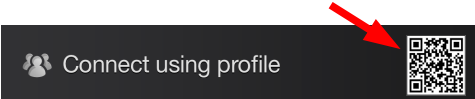
- Use a 2-finger swipe from left-to-right gesture to present the Connect using profile window, and press the QR Code icon.
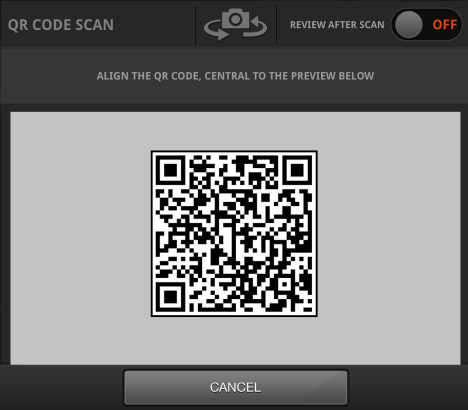
- Within the camera preview window, align the QR Code you want to scan
- Use a 2-finger swipe from left-to-right gesture to present the Connect using profile window, and press the QR Code icon.