
TABLE OF CONTENTS
- What does BYOD stand for?
- What do I need to get started?
- How to locate the NetLinx Master's MAC address
- How is BYOD relevant to TPControl?
- Is code required for TPControl BYOD to work?
- How many TPControl devices can I use?
- Getting Started
- BYOD API command
- How BYOD file retrieval works
- QR Code Scanner
- Things of Note and Tips
What does BYOD stand for?
BYOD stands for Bring Your Own Device.
What do I need to get started?
- Any device capable of running TPControl for Apple, Android, or Windows (TPI-PRO)
- A TPControl BYOD License Token, e.g., BLT-0-xxxx-xxxx
60-Day BYOD Trial licenses can be generated via the TRY link on our product page. - An AMX NetLinx Master running v3 or later firmware, and its primary MAC address.
(see How to locate the NetLinx Master's MAC address below) - Access to TPCloud for initial administration via an Internet browser.
NOTE: With the exception of retrieval by TPControl of a BYOD UI file from TPCloud, Internet access is only required for the initial BYOD License registration. During operation, Internet access is NOT required by the NetLinx Master, nor TPControl devices. - A TP4/TP5 UI file.
How to locate the NetLinx Master's MAC address
The MAC address is typically located on the rear or bottom of the AMX NetLinx master, and is represented in alphanumeric character formats, e.g., 00609F964FF8.
Alternatively, you may telnet to the NetLinx master: type show device followed by <enter> and note Device 00000's Physical Address (MAC address) value.
How is BYOD relevant to TPControl?
Firstly, all TPControl devices, whether they themselves are licensed or not, will connect to a TPControl BYOD Licensed AMX NetLinx Master.
Secondly, upon connection, TPControl will retrieve and present the hosted BYOD UI file for that NetLinx Master.
In a nutshell, you simply download TPControl from the respective device App Store (Apple, Android, or Windows – all are free downloads), then configure TPControl to locate your BYOD Licensed NetLinx Master (super easy via a QR code), and before you know it, you are up and controlling your AMX system.
Is code required for TPControl BYOD to work?
For clarity, no code specific to TPControl BYOD operation is required to be running on the AMX System. Having said that, code authored by the AMX Integrator/Programmer is required to be running on the AMX system in order for any interface device (AMX or TPControl) to interact as intended.
How many TPControl devices can I use?
There is no restriction on how many TPControl devices can connect to a BYOD Licensed NetLinx Master, outside of the normal AMX memory and/or concurrent device connection constraints.
Getting Started
Part 1: Create the BYOD License file
Do you have a TPC User ID/Email account?
- If you already have an account with Touch Panel Control (https://store.touchpanelcontrol.com/), then you already have a TPC User ID and account for TPCloud. Jump to 'Add the BYOD License Token to your TPCloud account'.
- If you do not have an account, go to https://store.touchpanelcontrol.com and register – it's free to do. The email you use to register becomes your TPC User ID
Add the BYOD License Token to your TPCloud account
If your BYOD Token is prefixed with 'BLT-0-', then it is already assigned to an account. Ensure in Step 1 below that you log into the relevant TPCloud account that the BYOD Token is assigned to. Tokens with this prefix have been distributed directly by Touch Panel Control.
BYOD Tokens that are prefixed with 'BLT-1-' (or similar) are not initially assigned to an account.
Tokens with this prefix have been distributed via an AMX Distribution channel.
- Log in to 'TPCloud' then select the 'BYOD Tokens' tab.
If the BYOD Token already appears in your list, proceed to Generate the License Key file for your NetLinx Master. - Select the 'Add BYOD Token' option.
Enter the BYOD Token value in the respective field.Optionally enter a "Purchase Order/Reference". When you are ready, press the 'Add Token' button.
The BYOD Token will be added to your list of BYOD Tokens.
Generate the License Key file for your NetLinx Master
- Navigate to the BYOD Tokens tab and select a license
- Press the Generate Key button
- In the field provided, enter the controller's MAC address.
- Follow up by pressing the Generate Key button.
- Press the Download Key button to obtain the license key file (system_license.tpc), and select either
- Email - have the license key file sent directly to your account's email address
- Download key - to save the file directly to your computer
FTP the BYOD license file to the NetLinx Master
Place the 'system_license.tpc' file on the NetLinx Master using your preferred FTP client. For example, Windows users may:
- Open Windows Explorer
- Initiate FTP session - within the address bar, type in the FTP protocol and IP address of the Netlinx controller and press enter. Example: ftp://192.168.1.11
- Validate Login - when prompted for username and pass, enter the username and password for your Netlinx controller
- Copy/Paste License - when logged in successfully, drag the system_license.tpc file into the window and release to start the copy process
Part 2: Hosting a BYOD UI file
Host a BYOD UI file in TPCloud
- Within TPCloud, select the ‘BYOD Tokens’ tab, and choose the BYOD Token icon. This will present the BYOD tokens 'View Details' tab.
- From the BYOD File section, select the ‘Assign BYOD UI file’ option.
- Press the ‘Select File’ button after selection of either a previously uploaded UI file, or choosing to upload a new UI file from your computer.
That’s it! Now, any TPControl device with Internet access will upon connection to the BYOD Licensed AMX System, check to see if the TPCloud hosted UI file needs to be retrieved i.e. TPControl only retrieves the file if the file does not match what it may have previously retrieved.
Host a BYOD UI file on the AMX NetLinx master
- Within TPCloud, select the ‘Files’ tab.
If no files are listed, use the ‘Add File’ option to firstly upload your UI file.
From the file list, select a file and choose the Download system_license.tp4 file button
You will be presented with a file dialog window listing UI files that you have previously uploaded to TPCloud, from which you can choose one, and then press the 'Select File' button to save the 'system_license.tp4' file directly to your computer. An option to upload more files to TPCloud is provided.
All that remains now is to FTP the BYOD UI file to the AMX NetLinx master
BYOD API command
TPCCMD-Update,BYOD;
The process of BYOD UI file retrieval is automatic in TPControl, initiated each time TPControl connects to a BYOD licensed system. Additionally, TPControl will only download the BYOD UI file if the file does not match the previously retrieved file.
However, the TPCCMD-Update,BYOD; API provides the ability to force update/retrieval of the BYOD UI file as needed and in the process overwrites any existing BYOD UI file for that system that may have been on the TPControl device. For example, you can implement within AMX code, or within the UI file, a button to retrieve the BYOD UI file now rather than waiting for the TPControl device to disconnect/reconnect, which would in turn invoke its own automated check anyway.
How BYOD file retrieval works
TPControl identifies BYOD licensed control systems when connecting to the AMX System, and if TPControl has Internet access, it queries TPCloud to see if a BYOD UI file has been configured via the "Assign BYOD UI file" option for the BYOD Token for the related AMX system. If so, the BYOD UI file will be retrieved from TPCloud. Otherwise, if TPControl does not have access to TPCloud (or there is no assigned BYOD UI file), and a BYOD UI file has been stored on the AMX system, TPControl will retrieve the BYOD UI file from the AMX system.
NOTE: Upon connection to a BYOD licensed AMX System TPControl automatically downloads the BYOD UI file from TPCloud (if available) or the AMX system, but only if the file does not match a previously retrieved file for that AMX system.
QR Code Scanner
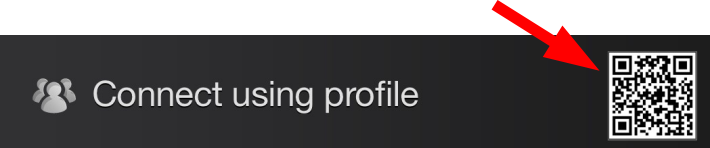
- Use a 2-finger swipe from left-to-right gesture to present the Connect using profile window, and press the QR Code icon to begin.
- Within the camera preview window, align the QR Code you want to scan.
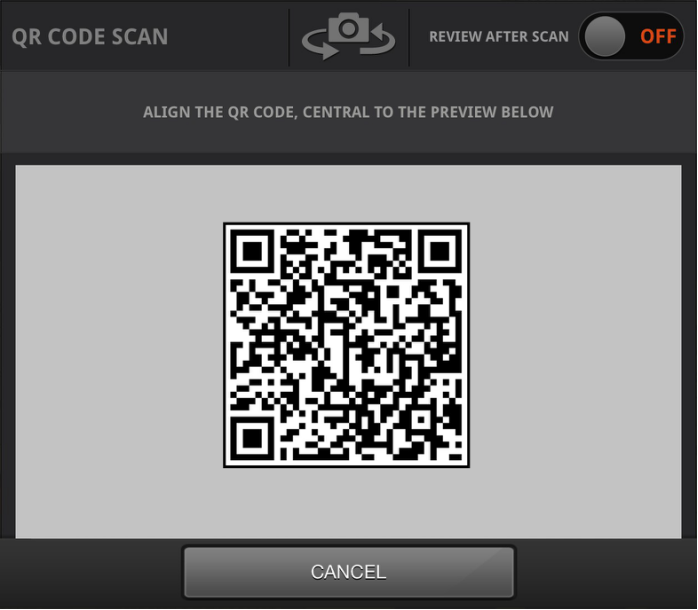
That's it! If the QR code is encoded with a valid TPControl API command or URI, it will be parsed accordingly. The result of scanning the QR code above is:
tpccmd-1;LocalHost,192.168.100.11;DeviceID,11001;ProfileName,Boardroom;ScreenResize,Scale;ApplyProfile;
...and that command translates to:
Configure TPControl “Profile 1” to connect to the AMX system at IP address “192.168.100.11”, using AMX Device ID “11001”. Name this profile “Boardroom”, and set the screen resize option to “Scale to fit”. Apply this profile to invoke these settings immediately.
QR Scanner options
REVIEW AFTER SCAN:
When turned ON, after successfully scanning a QR code, TPControl will present the scanned result for review.
For example;
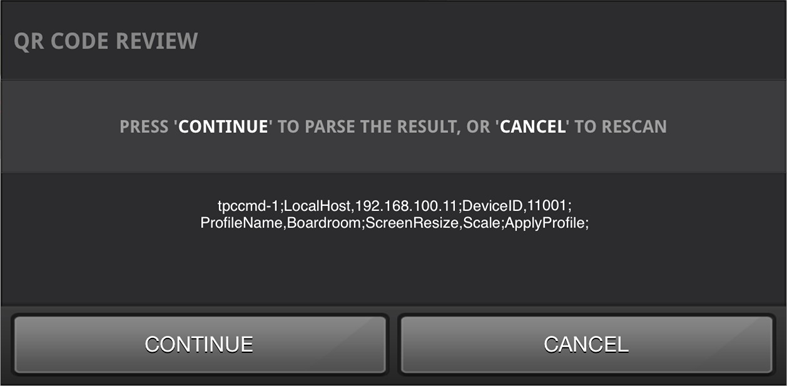
Then, upon selection of the 'CONTINUE' option, TPControl will parse the scanned result. Otherwise, selecting 'CANCEL' will return to the QR Code Scan window as in step 2 above.
SWAP CAMERA:
Pressing the Swap Camera icon will toggle between any available device cameras, if applicable.

How do I create a QR Code?
You can create QR codes via the Touch Panel Control website, direct link here:
https://store.touchpanelcontrol.com/qr-code/
Manage AMX Device IDs from code
For an example code demonstrating how to manage multiple devices connecting to a system using a common QR Code and AMX Device ID, please refer to our TPC-DynamicDeviceID.AXW workspace.
QR Scanner Tips
Besides configuring TPControl settings and getting connected to AMX control systems, scanning QR Codes within TPControl can have other uses.Some examples are shown below, which result in launching the respective websites within the device's default web browser:
- http://www.touchpanelcontrol.com/

- https://apps.apple.com/au/app/tpcontrol/id348715945

- https://play.google.com/store/apps/details?id=com.touchpanelcontrol.tpcontrol

- https://apps.microsoft.com/detail/9n7mzgz1p823?amp%3Bgl=GB&hl=en-us





Things of Note and Tips
NOTE: Only one BYOD UI file is stored on the BYOD Licensed NetLinx Master at any time, and similar if hosting the BYOD UI file in TPCloud. All devices that connect to the BYOD Licensed NetLinx Master will retrieve the relevant/same BYOD UI file.
TIP: If required, using TP4 File Slots within TPControl (where applicable) will provide the ability to recall alternate TPControl device stored files, independent of the BYOD NetLinx Master BYOD UI file. See the TPControl - API Commands document for information on managing file-slots, including BYOD file selection.
TIP: Refer to the example TPControl Dynamic DeviceID assignment from code workspace for an introduction to managing AMX Device ID assignments via code.